
How It Works
Follow these steps to register, confirm your address, choose your services and submit your first order. For customers in Toronto and Mississauga, on desktop or mobile.
A prepaid package adds credit to your Simply Laundry account — it doesn’t book a pickup by itself. Buying credit and scheduling a pickup are two separate steps. Once your package purchase is complete, come back to this page (or just tap Clean My Clothes in the menu) and follow the steps below to book your pickup. Mention your package when you check out and we’ll apply your balance to the order.
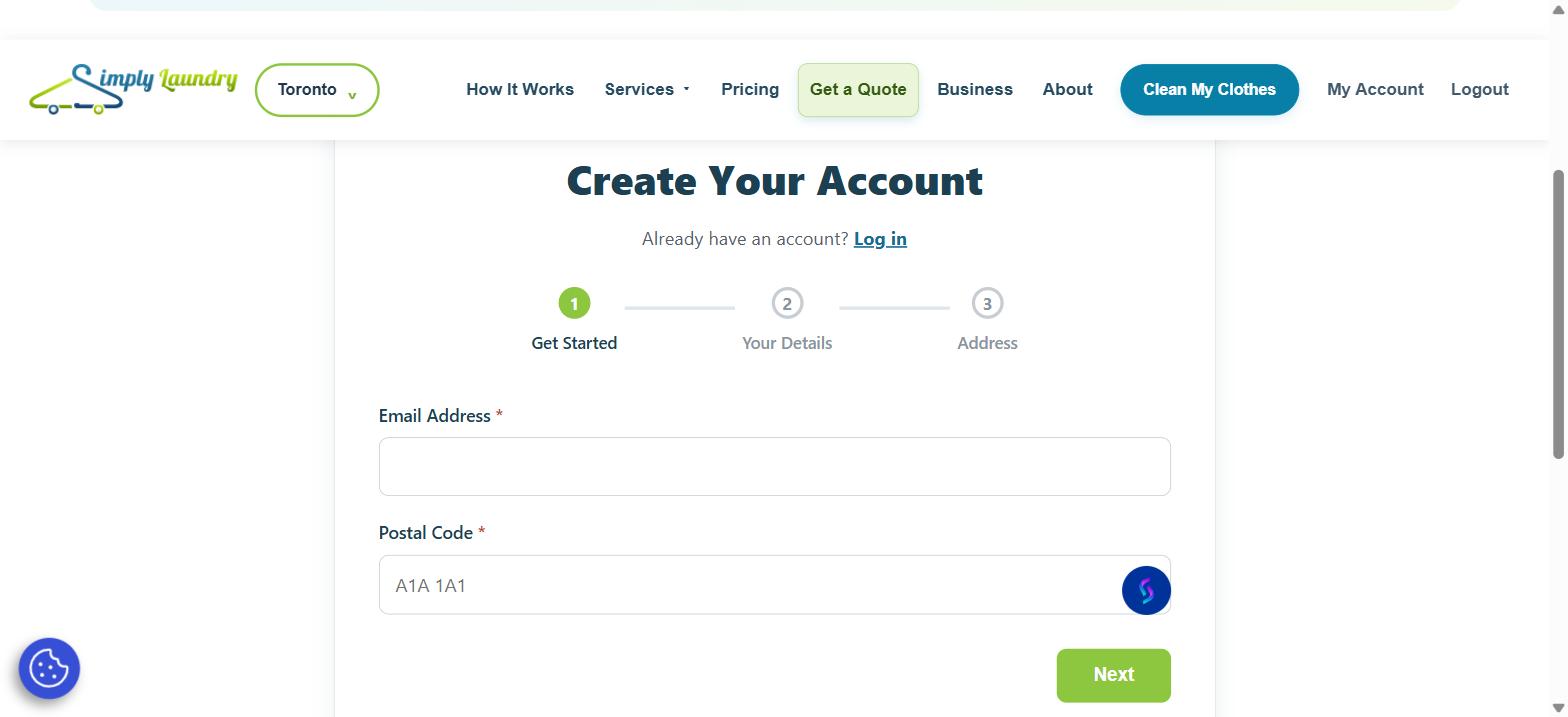
Create your account
New customer? Open Sign Up. Already registered? Log in and continue to step 2.
- Get Started: enter your email and postal code. Once coverage is confirmed, click Next.
- Your Details: choose Residential or Business, enter your name and phone number, then create and confirm a password of at least 8 characters. Complete any applicable company details and click Next.
- Address: start typing your street address and select the matching Google suggestion. Street, city, province and postal code fill automatically.
- Add your apartment/unit, buzzer code and delivery instructions. If needed, use Can’t find your address? Enter it manually.
- Complete the verification checkbox and click Create Account. Correct any highlighted fields before trying again.
Creating an account does not book a pickup. Continue below to place your order. If you cannot sign in, use Forgot your password?.
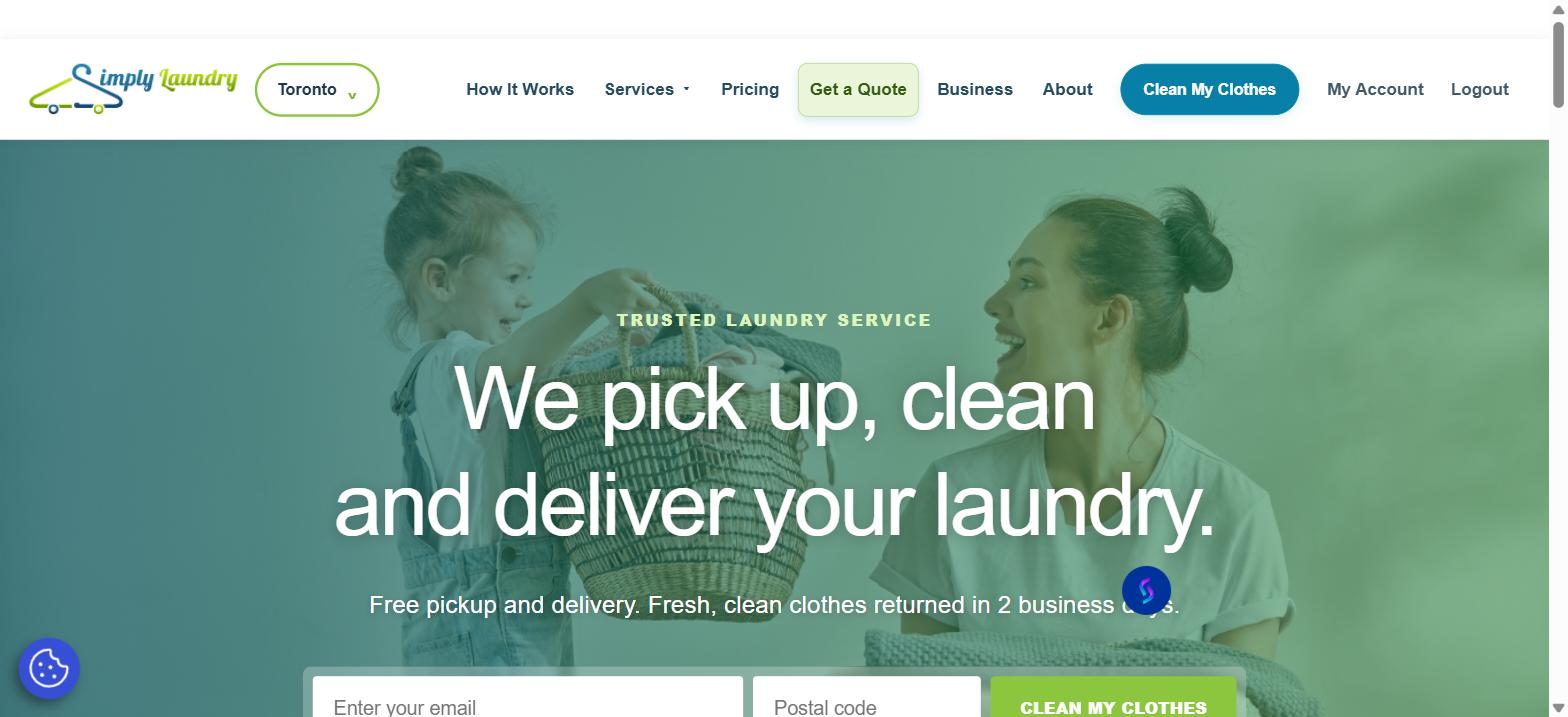
Tap “Clean My Clothes”
From any page, click Clean My Clothes button in the top menu (or the button on the homepage) to start a new order.
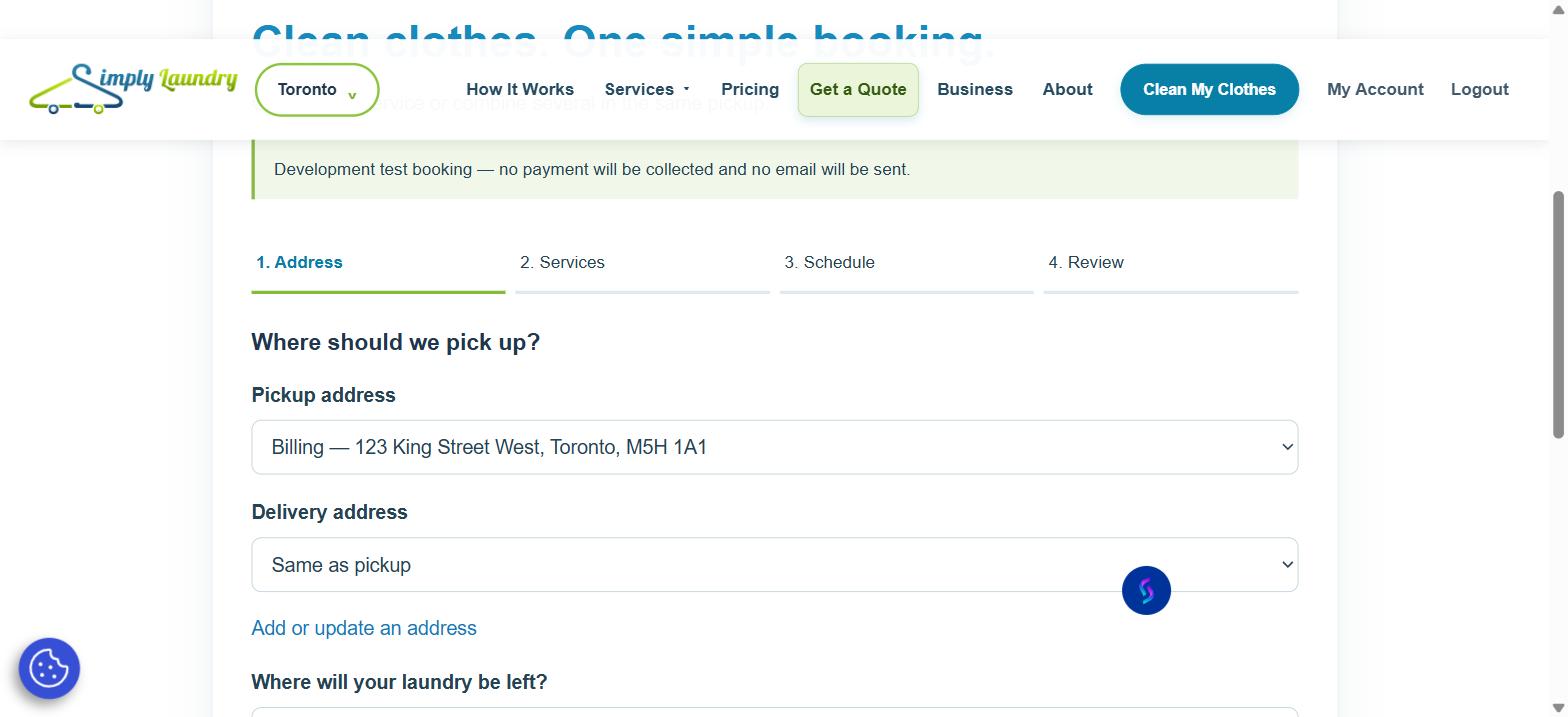
Add your pickup & delivery addresses
Choose a saved address for pickup. Delivery defaults to “Same as pickup” — so if your laundry is going back to the same place, there’s nothing extra to fill in. Need a different delivery address, or a new address altogether? Use Add or update an address.
You’ll also tell us where to leave your laundry — at the door, with the concierge, or another option you specify.
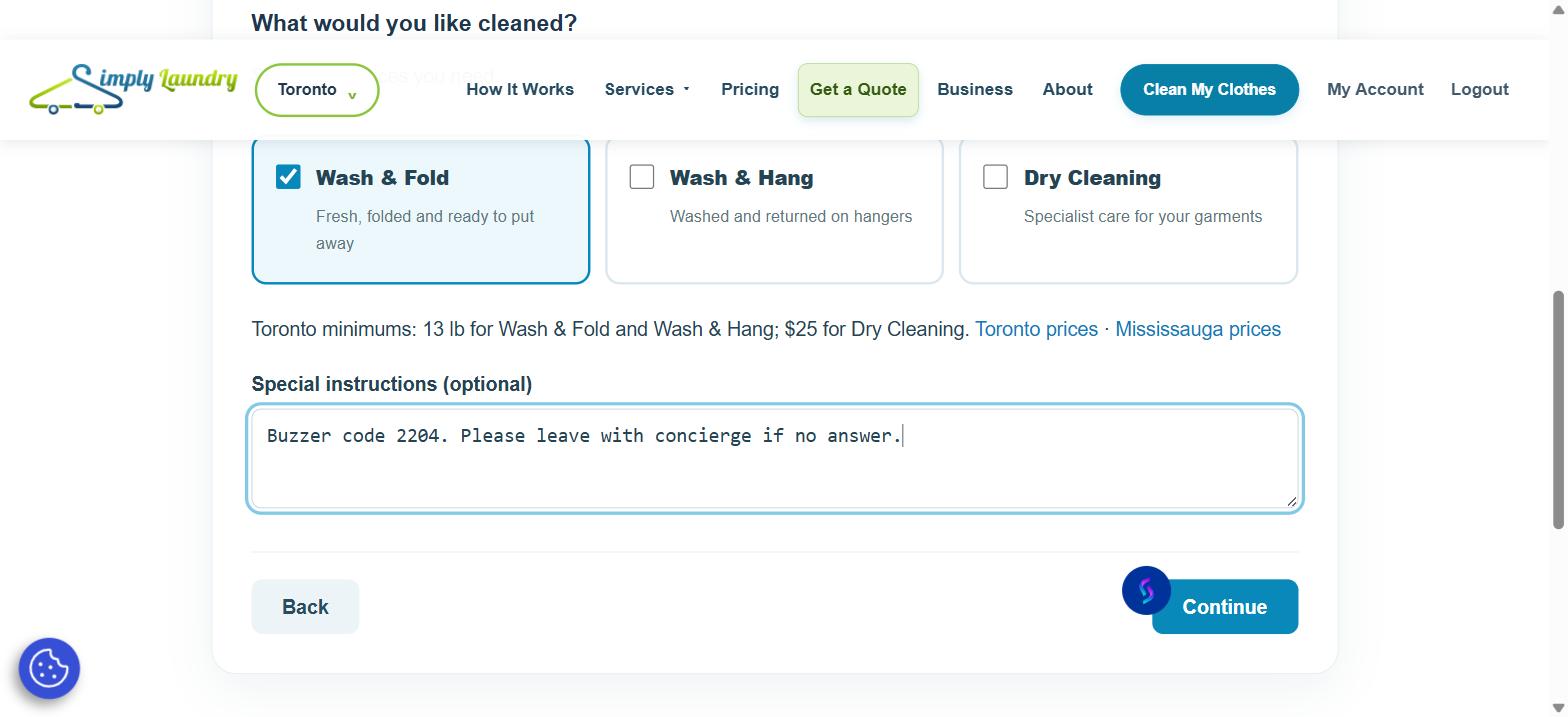
Choose your service & add special instructions
Select one or more services — Wash & Fold, Wash & Hang, or Dry Cleaning — combining as many as you need in the same pickup. See Toronto prices or Mississauga prices any time.
Add garment-care notes under Special instructions. Choose any available detergent, softener or other service options, review their extra charges, then click Continue.
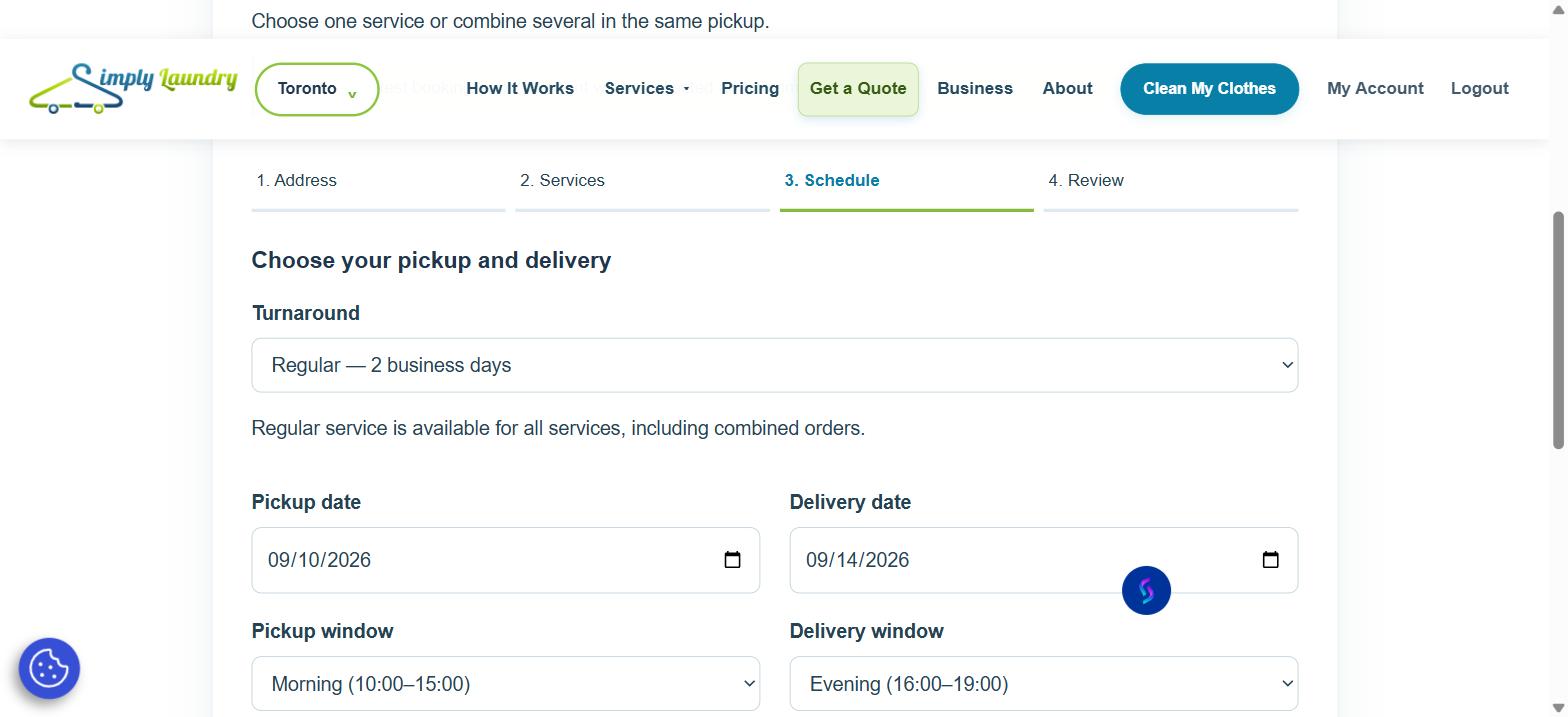
Pick your pickup & delivery times
Choose your pickup and delivery dates and time windows: 10 AM–3 PM or 4–7 PM, Monday–Friday. Regular laundry service takes 2 business days. Rush service is next business day for Wash & Fold only, with an extra $10 charge. Choose a one-time booking or an available recurring schedule, and check the dates shown before continuing.
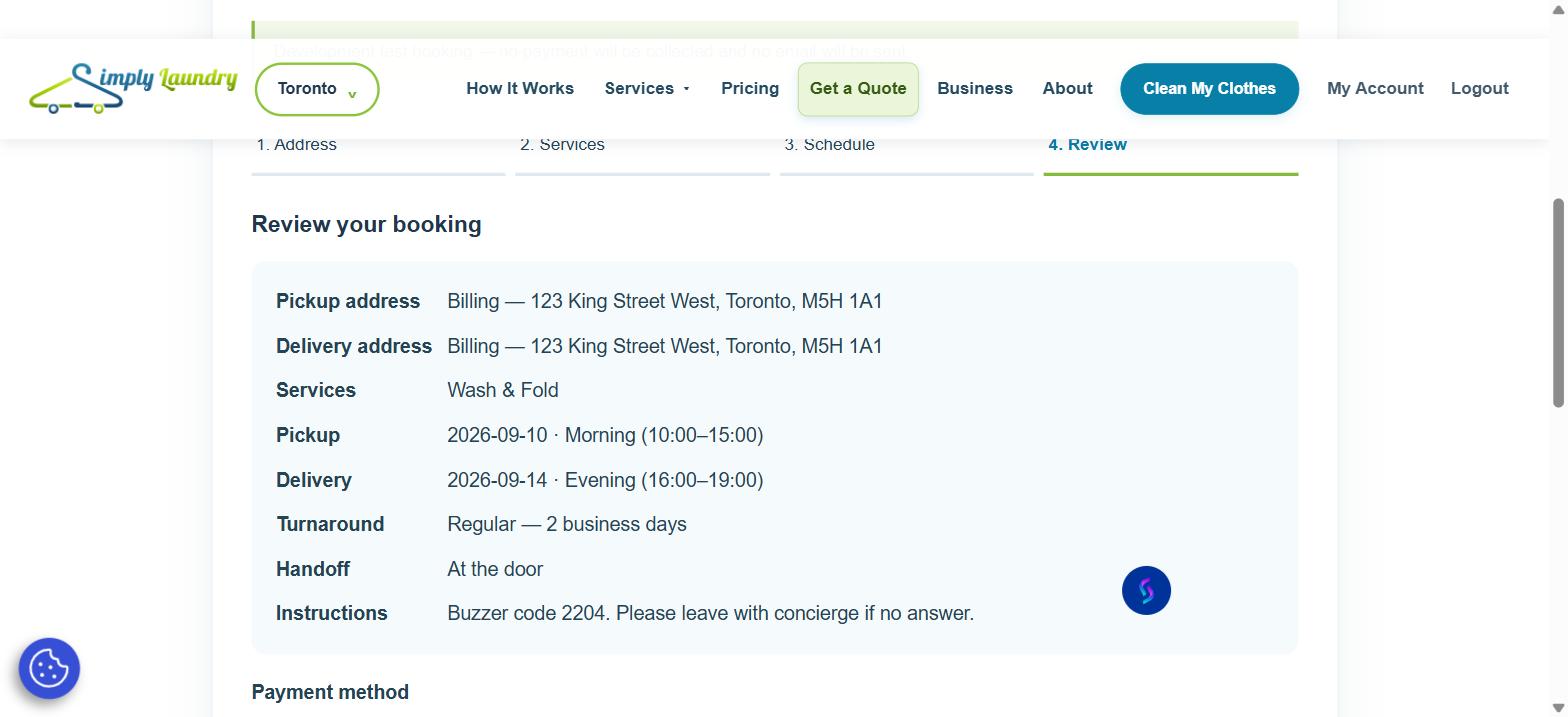
Review your order & choose payment
Check your addresses, service, schedule and instructions all in one place. Your final price is calculated after your laundry is weighed (or your dry-cleaning items are counted) — you’re not charged when you book. Choose the available payment method and check the confirmation box after reviewing all details. Use Back if anything needs changing.
If you have package credit on your account, mention it here (or when your order is confirmed) and our team will apply it for you.
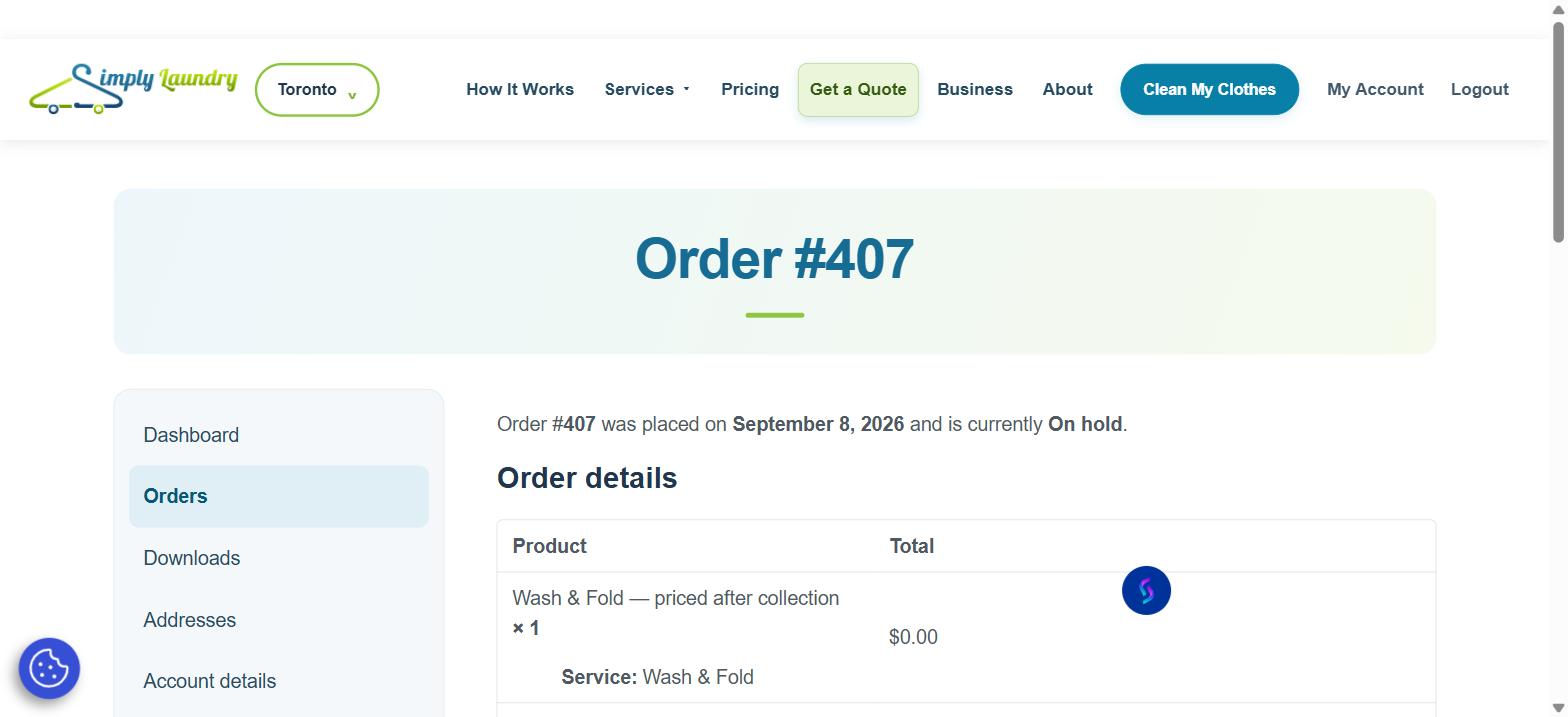
Submit & get your confirmation
Click Let’s Do Some Laundry to submit. Wait for the confirmation page before closing the window or submitting again.
You’ll land on your order confirmation with your order number, service, addresses and pickup/delivery schedule. You can find it again any time under My Account → Orders.
Ready to send your first load?
Create your account or sign in, and we’ll walk you through the rest.
Start My Order Free pickup & delivery in Toronto and Mississauga.